● Installation guide
Install TrackView PLUS in a few minutes.
TrackView is made up of three parts: the app itself and two helper processes, FFMPEG and FFPROBE, that let it read AIF/AIFF files and images. These steps set up all three.

TrackView is made up of three parts: the app itself and two helper processes, FFMPEG and FFPROBE, that let it read AIF/AIFF files and images. These steps set up all three.

Mac
Sign up on the TrackView PLUS page, then click the button for your computer. You can also download it here. Questions? Contact support@trackstage.io.
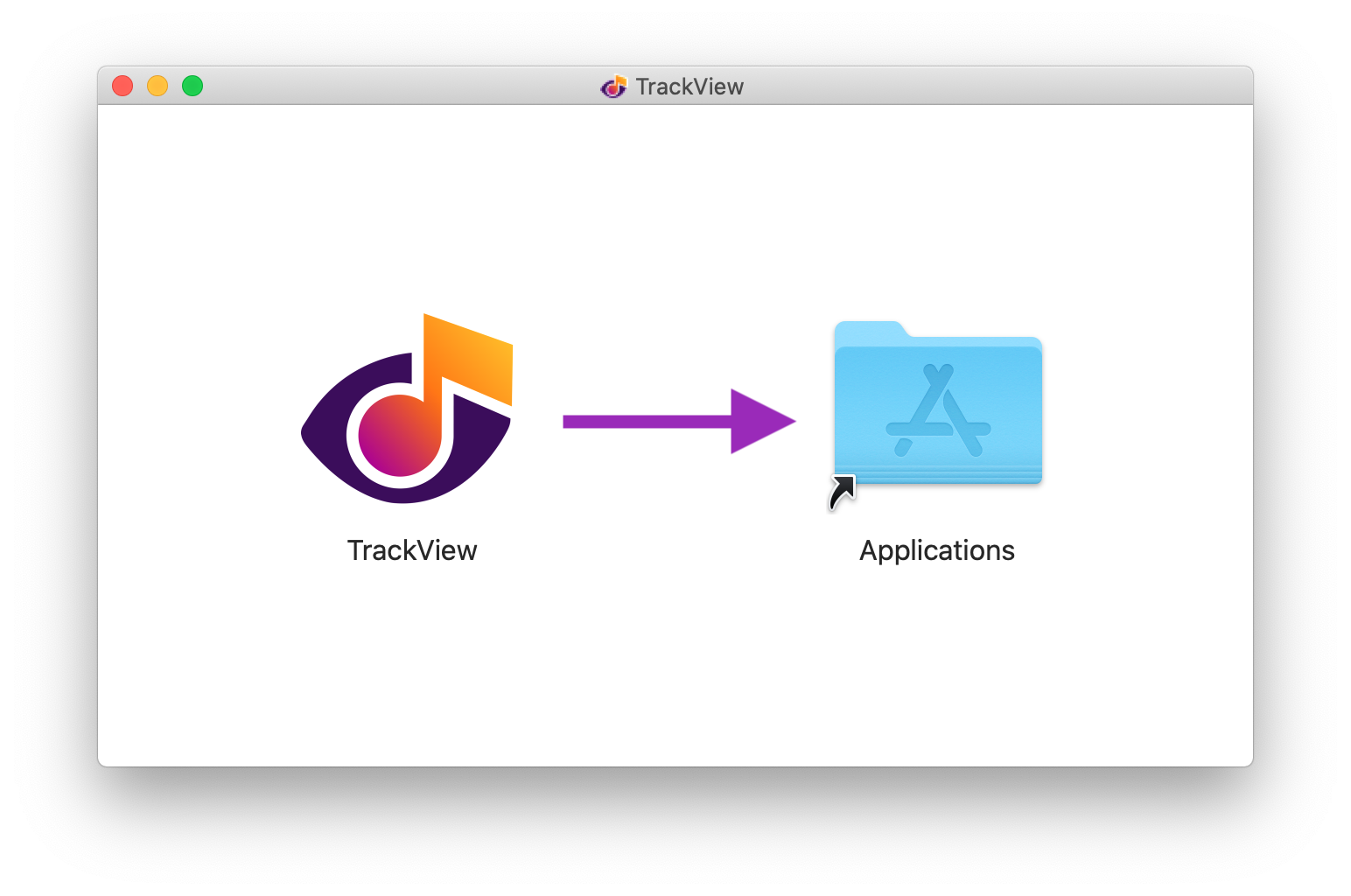
Drag the TrackView icon to your Applications folder.
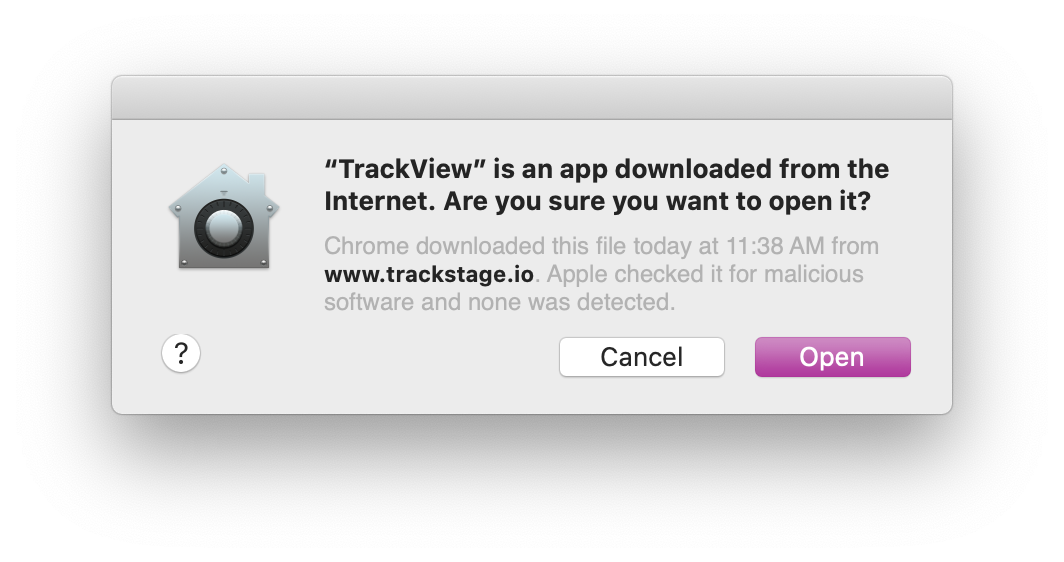
macOS checks that you want to open an app downloaded from the internet. Click Open.
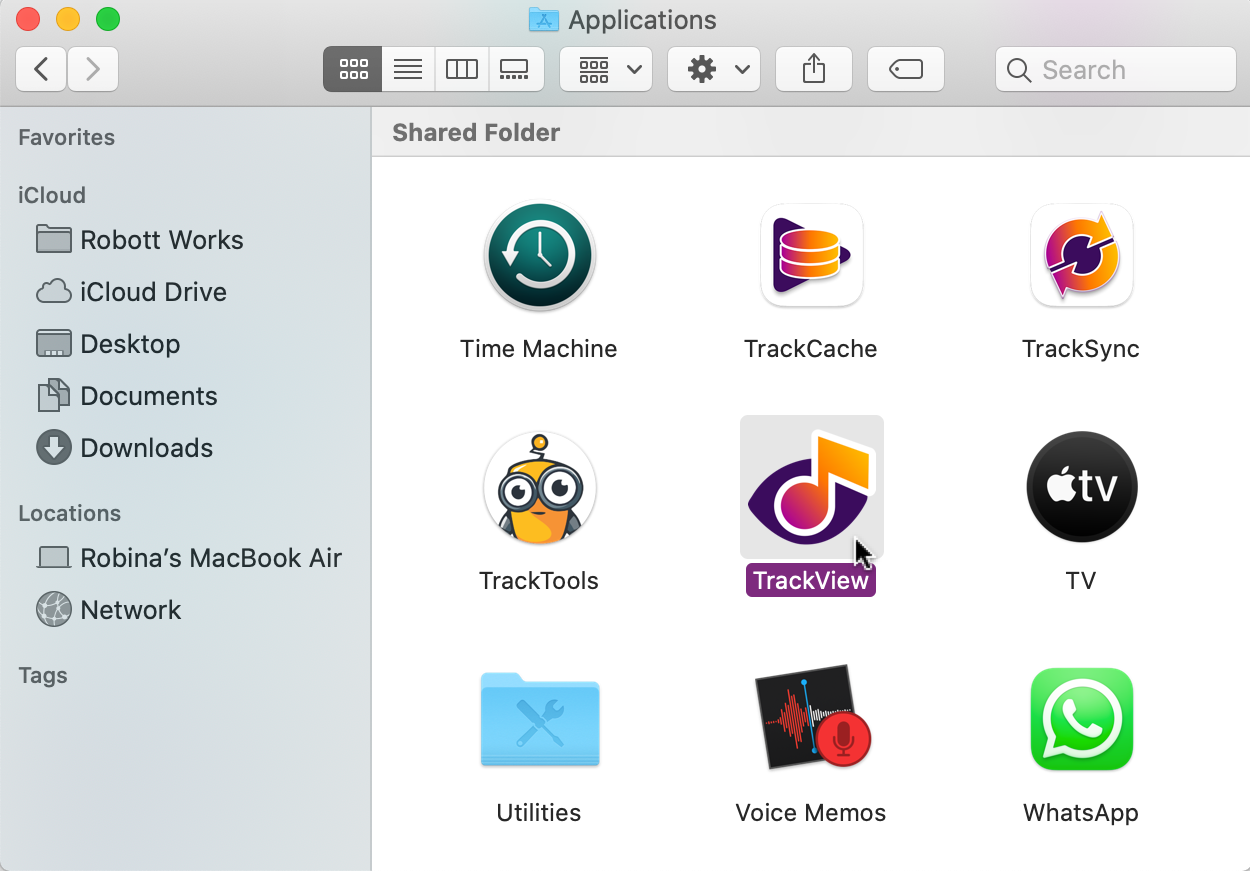
Double-click the TrackView icon in your Applications folder.
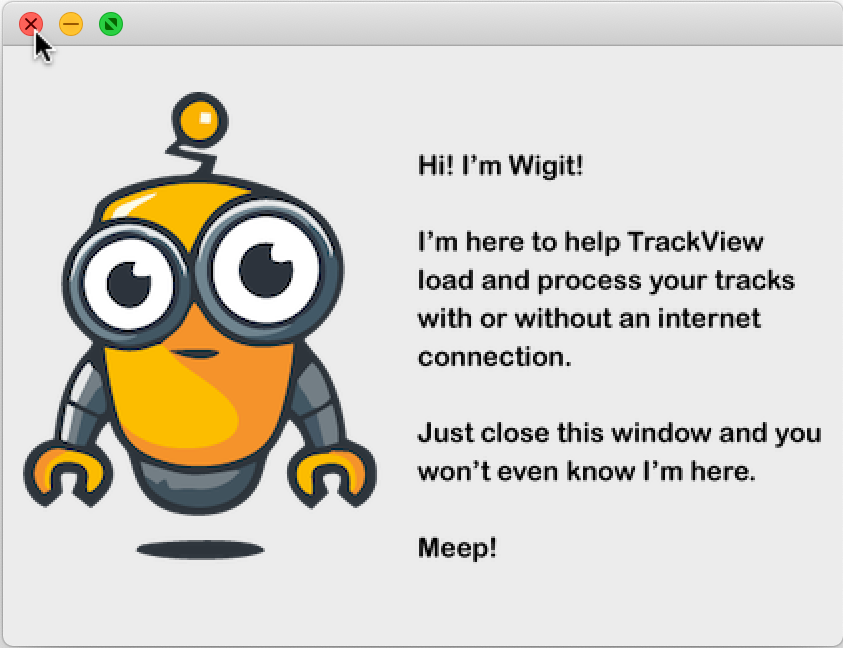
The TrackView app and the TrackTools start-up window will open.
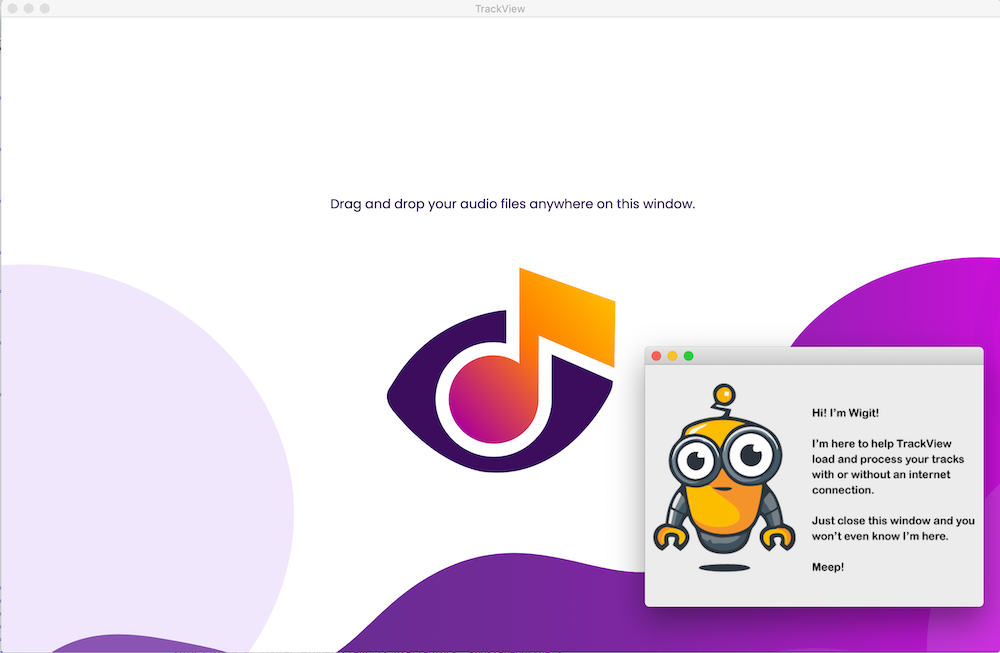
TrackTools keeps working in the background, so you can close its window.
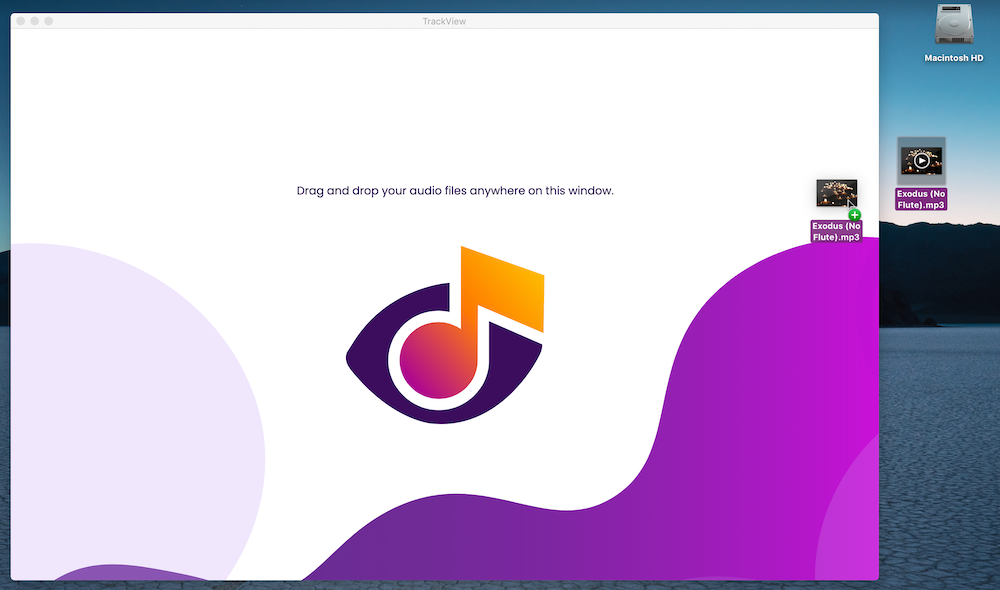
The TrackView icon will spin, then your track's metadata will be viewable.
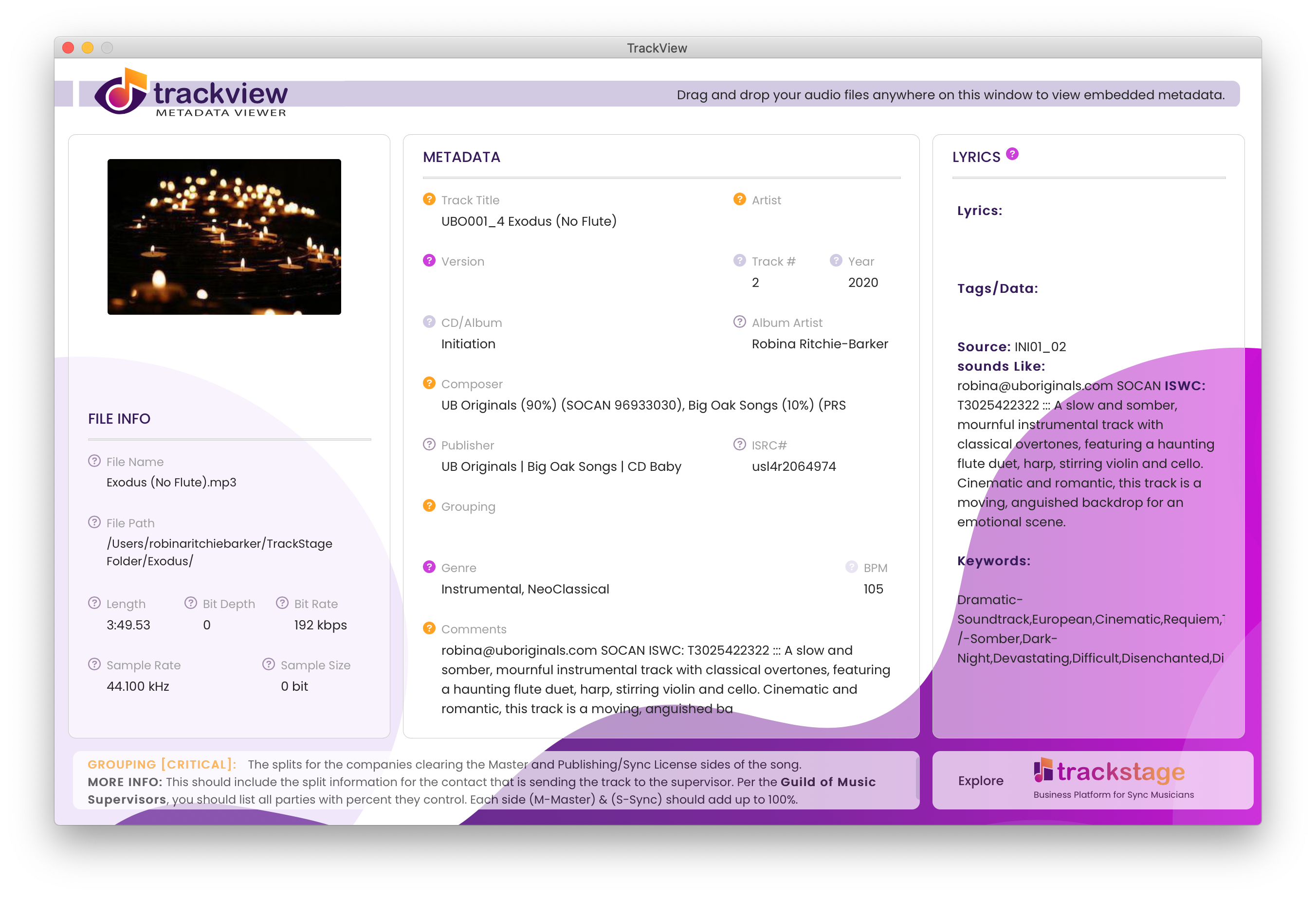
Hover over the coloured  icons to see definitions, examples and suggestions in the info pane.
You clearly care about your metadata
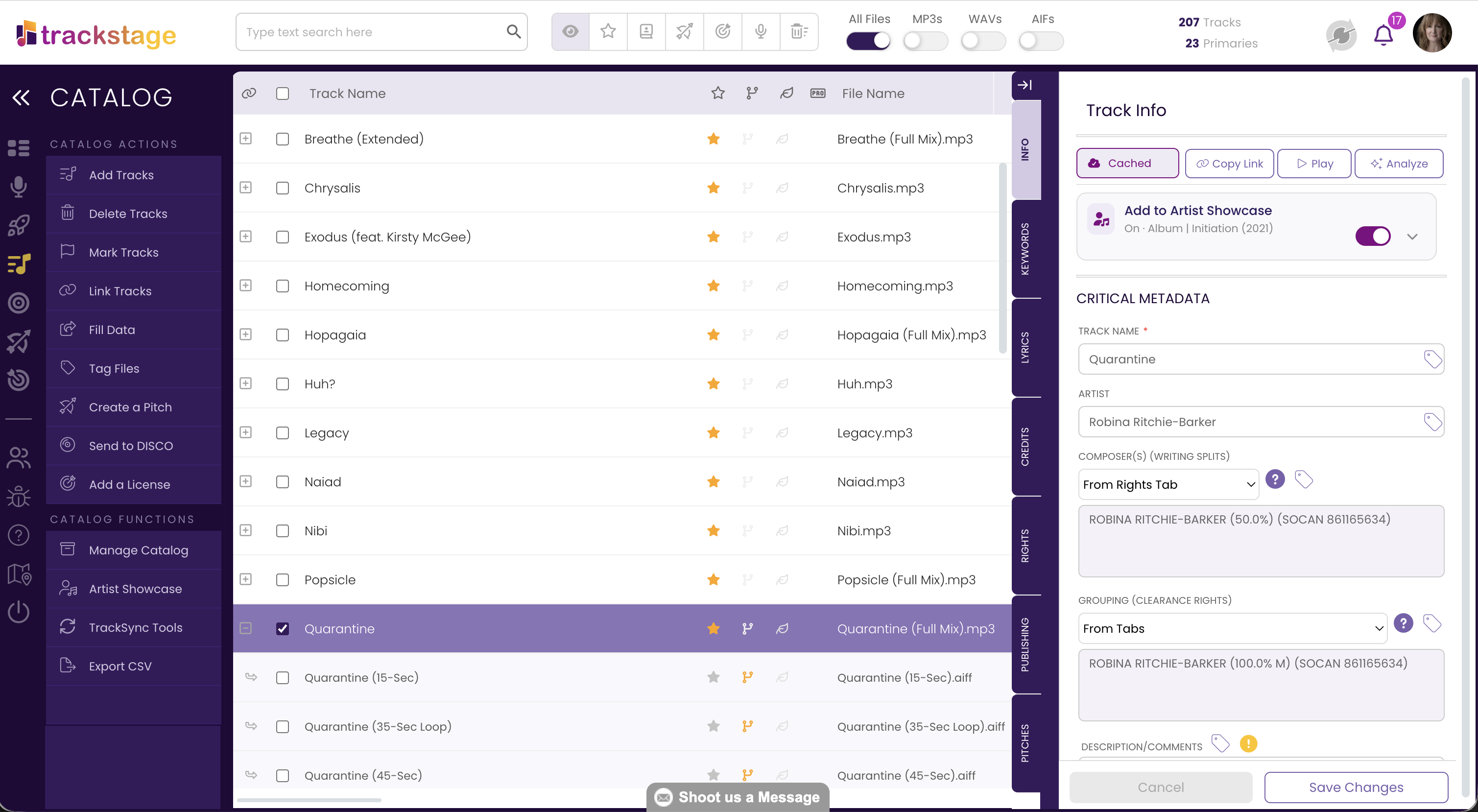
TrackView PLUS handles one track at a time. TrackStage does it for your whole catalog, and keeps every version, stem and split sheet connected to the song.
No credit card required.
Windows
Sign up on the TrackView PLUS page, then click the button for your computer. You can also download it here. Questions? Contact support@trackstage.io.
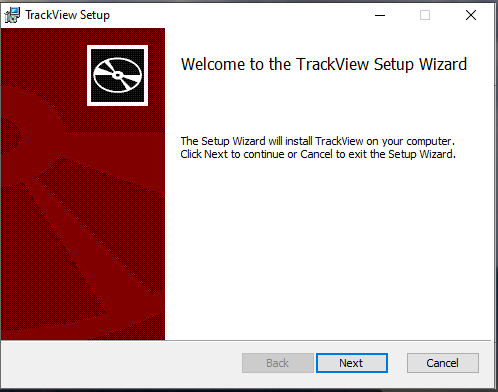
The installer sets up TrackTools, TrackView's little helper, first and then TrackView itself. Press Next to begin.
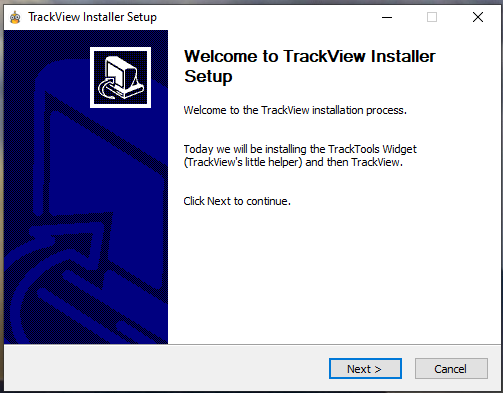
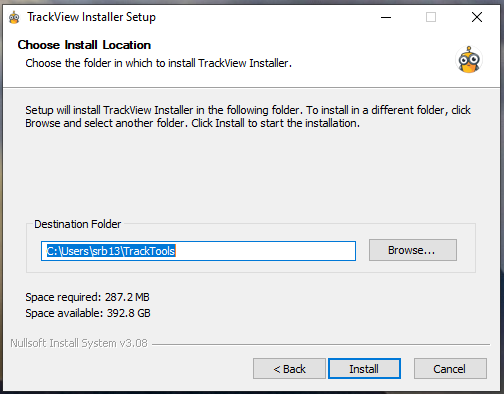
When Windows security asks whether to allow the install to continue, click Yes.
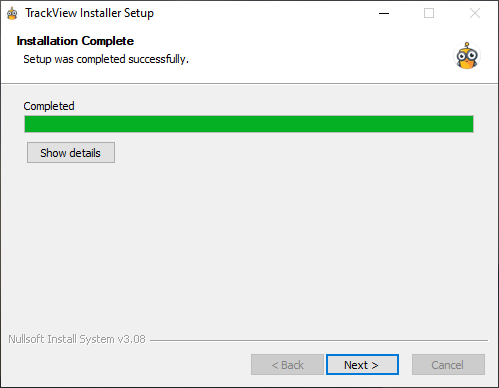
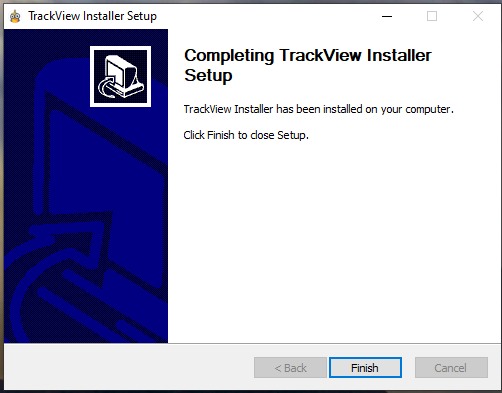
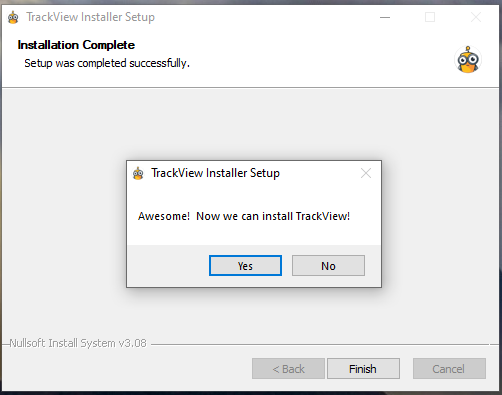
TrackTools is installed. Now it's time to install TrackView.
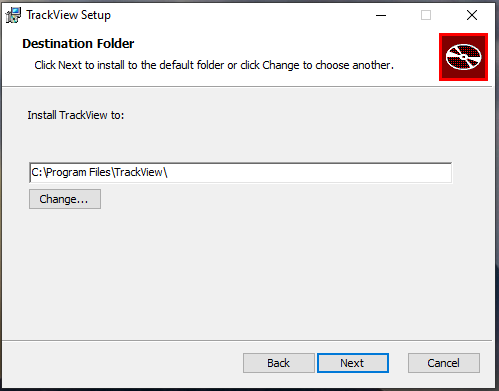
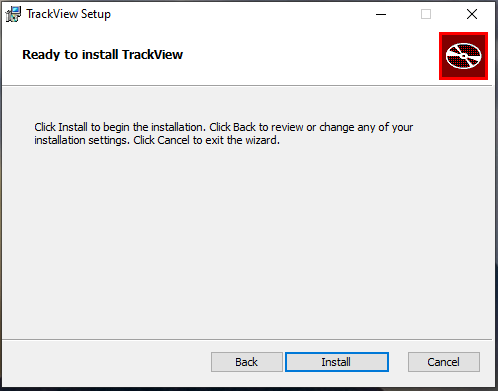
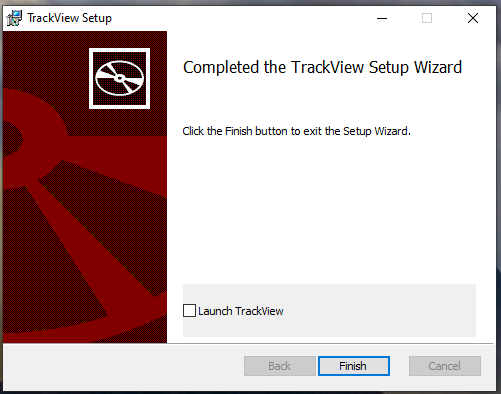
TrackView is installed and ready to use.
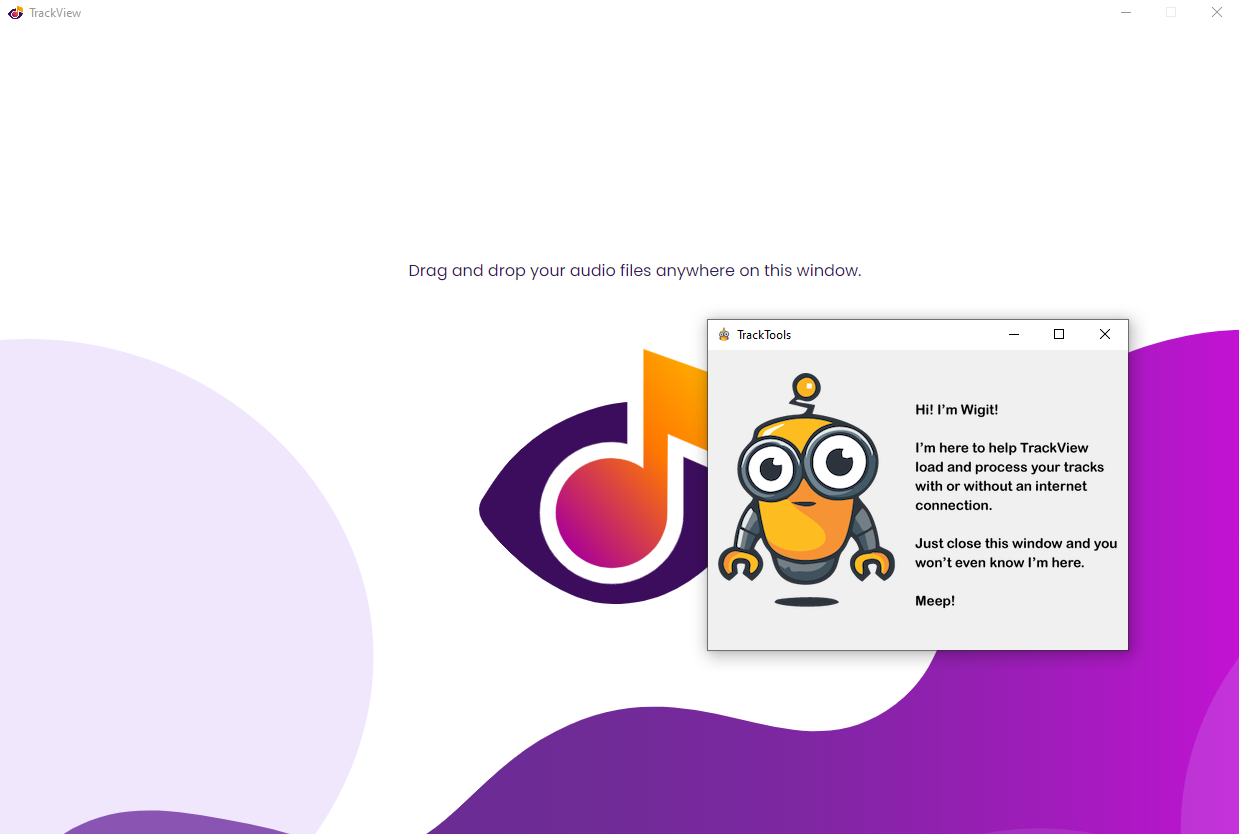
The TrackView window and the TrackTools start-up window will open.
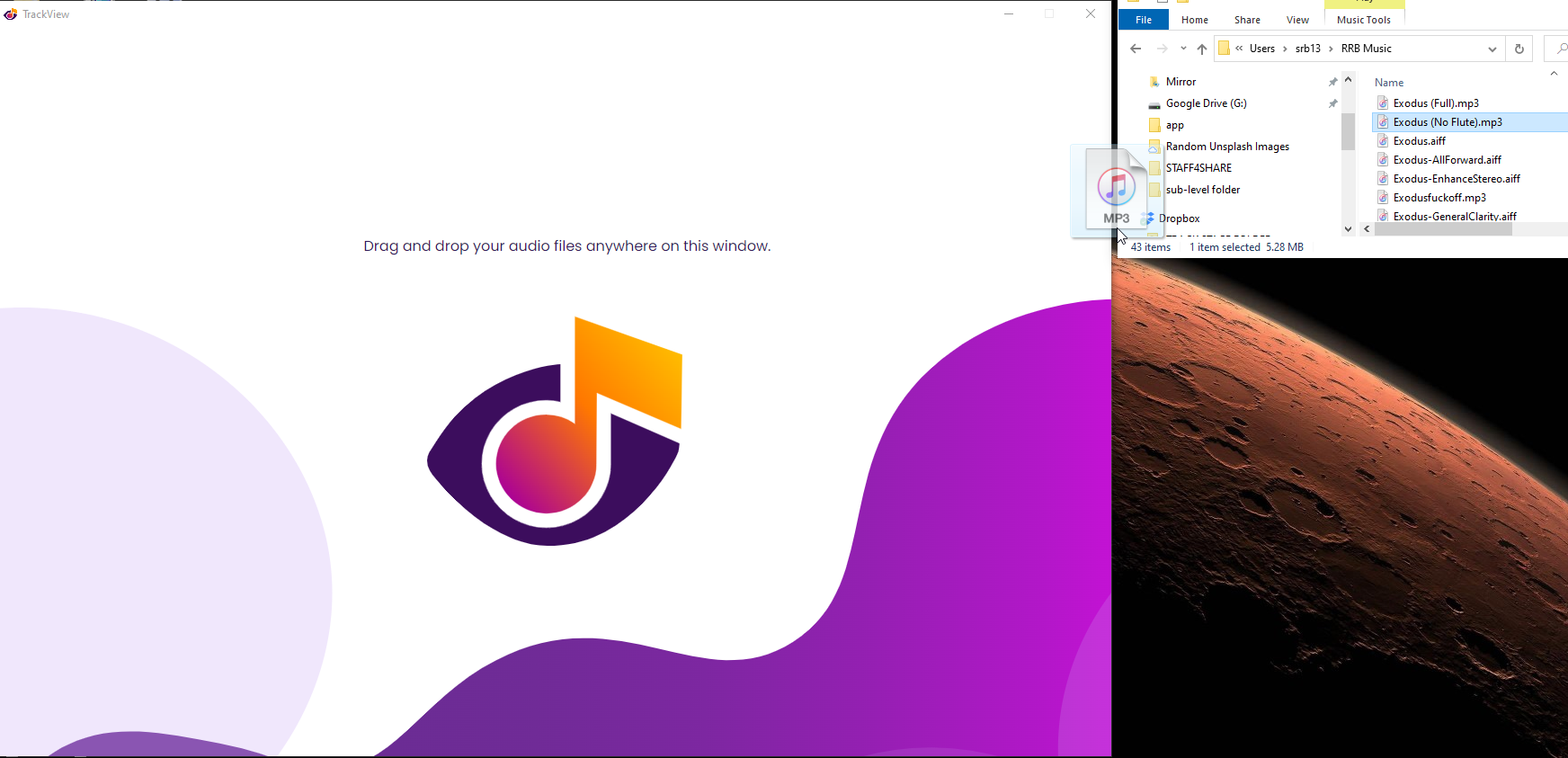
The TrackView icon will spin, then your track's metadata will be viewable.
Hover over the coloured icons to see definitions, examples and suggestions in the info pane.
You clearly care about your metadata
TrackView PLUS handles one track at a time. TrackStage does it for your whole catalog, and keeps every version, stem and split sheet connected to the song.
No credit card required.