
Help Center The CATALOG Module
Archiving
Archiving is driven from TrackSync Tools, under CATALOG FUNCTIONS in the Side Menu.
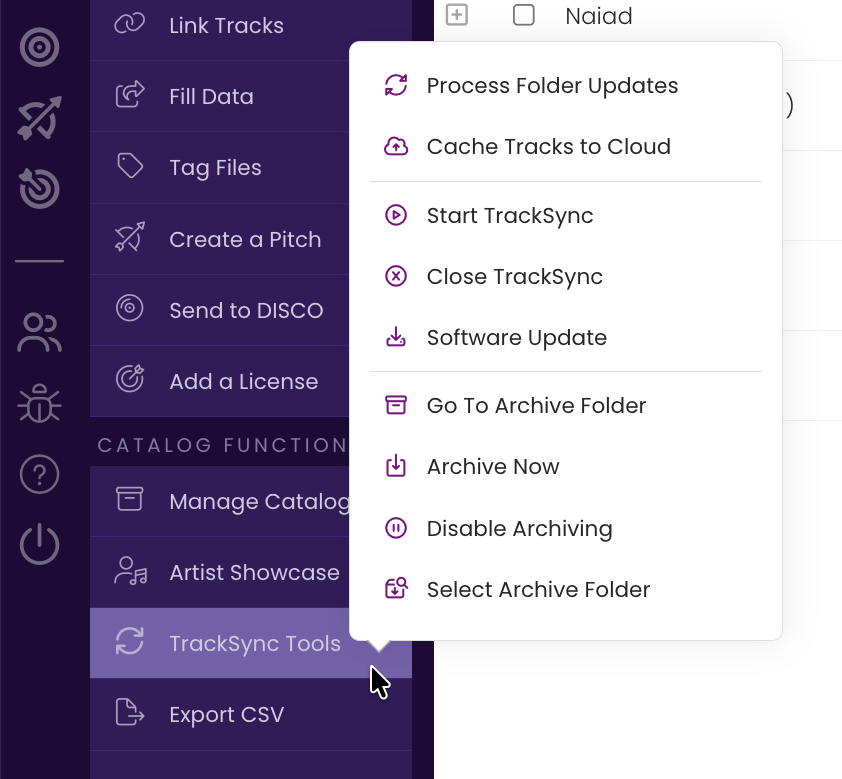
TrackStage has a built-in archiving function that keeps a duplicate copy of your TrackStage Catalog folder in a separate location you choose. An extra layer of security so you know your tagged files are safe.
How archiving works
You select a folder that you want to create an exact duplicate of your TrackStage Catalog folder. Then, every time you start or quit TrackSync, it copies the audio files in your TrackStage folder, with all updates in place, to the folder you designated. You can also do a manual archive on demand.
Setting Up your Archive Folder
Before you can archive your TrackStage Catalog folder, you need to designate the Archive Folder.
- Make sure TrackSync is running.
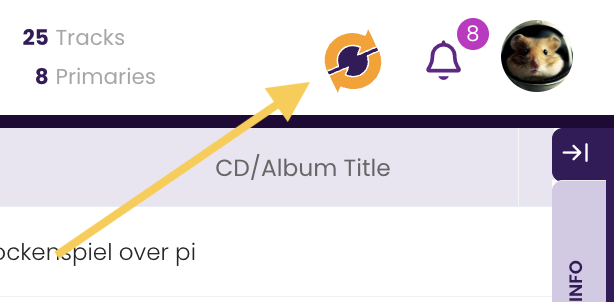
- Click TrackSync Tools › Select Archive Folder.
TrackSync will shut down and put itself into Archive Set Up Mode.
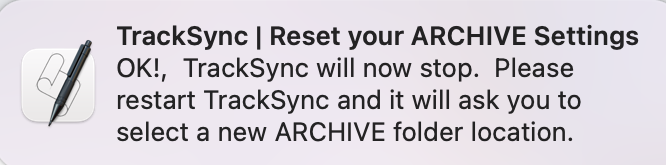
- Restart TrackSync.
Go to your Applications folder/Start Menu and start up TrackSync.
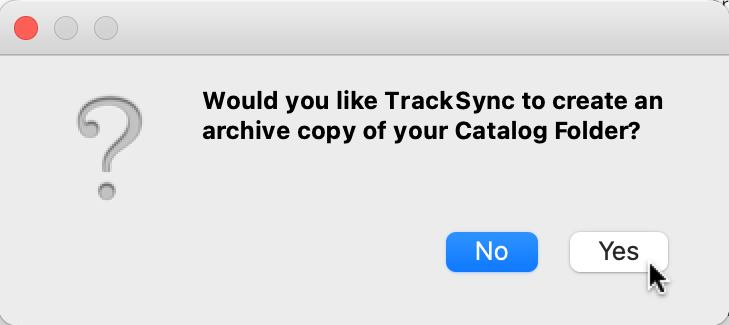
A dialog box opens. - Click Yes.
- Navigate to and select the location for the Archive folder.
This can be on your computer, Dropbox, GoogleDrive, an external hard drive, etc.
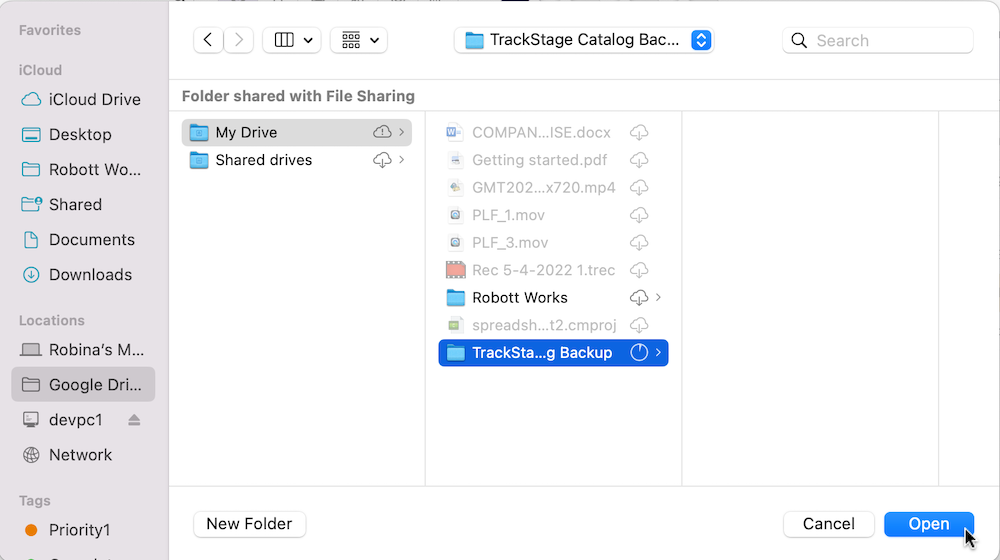
- Click Open.
TrackSync will create a folder called TrackStage_Catalog_Archive in the selected location and will then copy the audio files in your TrackStage Catalog folder into it.
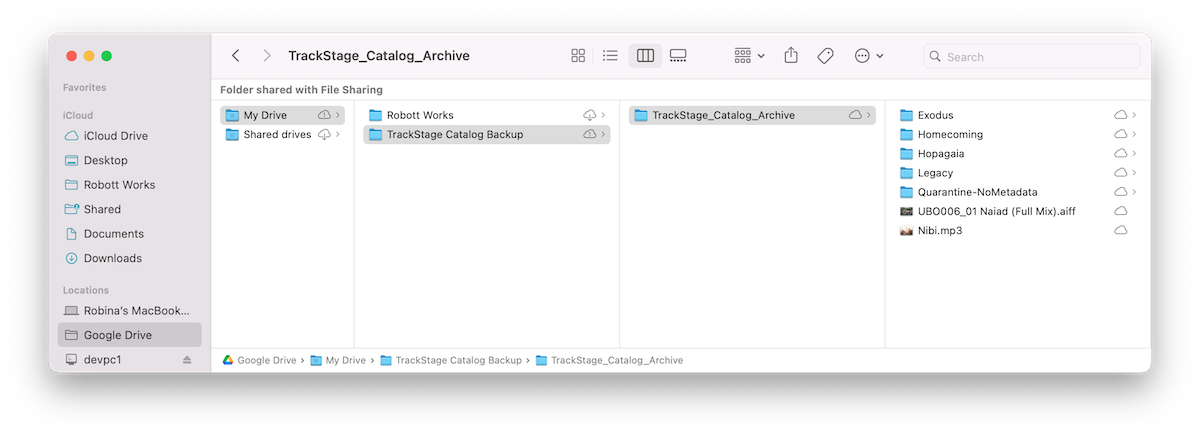
Now, whenever you quit or start up TrackSync, it will perform an automatic copy from your TrackStage Catalog Folder to the Archive to ensure your most up to date audio files are always backed up.
Perform a Manual Archive
You can have TrackSync backup your TrackStage folder on demand with the click of a button.
- Click TrackSync Tools › Archive Now.
TrackSync will back up your TrackStage Catalog Folder to the designated Archive Folder.
Disable Archiving
If you do not want TrackSync to back-up your TrackStage Folder, click TrackSync Tools › Disable Archiving.
To enable archiving after disabling it, click TrackSync Tools › Archive Now.
View Folders
TrackStage provides a quick shortcut to access your Catalog and Archive Folders from the TrackSync Tools menu. A single click opens the folder in question.